Journal · Guide · 8 min
Setting up a Mac from scratch in 2026: the 20-minute utility layer
By Ziyarex ·
Every "new Mac setup" list is sixty apps long, and following one leaves you with a machine that's slower than the one you started with and a menu bar you'll be triaging in six months.
This is the short version: the settings that are wrong out of the box, the six utilities that carry their weight, and the order to do them in. Twenty minutes, once.
First: the settings that are actually wrong by default
Do these before installing anything. Several are things you'd otherwise blame on the hardware.
Key repeat. The default repeat rate is slow enough that holding an arrow key feels broken.
defaults write NSGlobalDomain KeyRepeat -int 2
defaults write NSGlobalDomain InitialKeyRepeat -int 15
Log out and back in for these to take. If you're a developer and hold-to-repeat still doesn't work in some editors, that's press-and-hold accent picker:
defaults write NSGlobalDomain ApplePressAndHoldEnabled -bool falseTrackpad. System Settings → Trackpad: turn on Tap to Click, and push Tracking Speed up two notches past where it feels right, it'll feel correct within a day and slow forever afterwards if you don't.
Screenshots, out of your Desktop. The default dumps every screenshot onto the Desktop, which is why everyone's Desktop looks like that.
mkdir -p ~/Pictures/Screenshots
defaults write com.apple.screencapture location ~/Pictures/Screenshots
killall SystemUIServer
Finder, made usable. Path bar, status bar, folders sorted first, and the sidebar showing your home folder.
defaults write com.apple.finder ShowPathbar -bool true
defaults write com.apple.finder ShowStatusBar -bool true
defaults write com.apple.finder _FXSortFoldersFirst -bool true
defaults write com.apple.finder FXDefaultSearchScope -string "SCcf"
killall Finder
That last one makes Finder search the current folder by default instead of the whole Mac, which is what you meant every time.
The Dock's hide animation. If you auto-hide the Dock, the delay is the thing that makes it feel sluggish.
defaults write com.apple.dock autohide-delay -float 0
defaults write com.apple.dock autohide-time-modifier -float 0.15
killall Dock
Control Centre. System Settings → Control Centre, and move everything you don't read at a glance out of the menu bar. Doing this now saves the triage later.
Then: the six utilities, in priority order
1. A launcher. The single highest-return install on a Mac. Raycast is the current default answer, free, fast, and it absorbs clipboard history, window management, snippets and a calculator, which means it can replace three of the things further down this list. Alfred is the veteran alternative and still excellent.
Set it to ⌘-Space and move Spotlight to something else. Half the value of a launcher is muscle memory, and you won't build it on a second-choice shortcut.
2. Window management. macOS finally ships tiling, and for a lot of people it's now enough: drag to an edge, or hold Option and use the Window menu. If it isn't: Rectangle is free and does keyboard-driven halves and quarters, and that covers 95% of the need.
3. Clipboard history. You will not appreciate this until the first time you paste something from four copies ago. Raycast has it built in; Maccy is free and standalone if you'd rather keep it separate.
4. Screenshots. The built-in tool is genuinely good now (⌘⇧5, and ⌘⇧4 then Space for a window). Upgrade only if you annotate constantly, CleanShot X is the premium answer, Shottr is the fast, cheap, surprisingly deep one.
5. A menu bar manager. Not on day one, install it in month two when the bar has actually filled up. Ice is free and is what we'd point most people at.
6. Backups, before you need them. Time Machine to any external drive takes four minutes to set up and is the only item on this page that can save you from a genuinely bad day. Do it before you customise anything else, not after.
The order matters more than the list
Do the defaults block first, because several of the utilities exist to paper over settings you can just fix. Do backups second, because the risk is highest when the machine is new and you're moving data. Do the launcher third, because it changes how you use everything installed after it. Everything else can wait until you actually feel the friction.
The trap is installing utilities in anticipation of friction. That's how you get sixty apps and a slow Mac.
What we'd add, being upfront that it's ours
Four of the things on our own new-machine list are ours, and they're all small:
- Slate, the todo list rendered as the wallpaper, so the setup checklist you're working through right now is visible without opening anything.
- Oreo: live activities and a file tray in the notch, which is otherwise the only part of a new MacBook doing literally nothing.
- Insomniac, free, for the first time you need the lid closed and the work to continue.
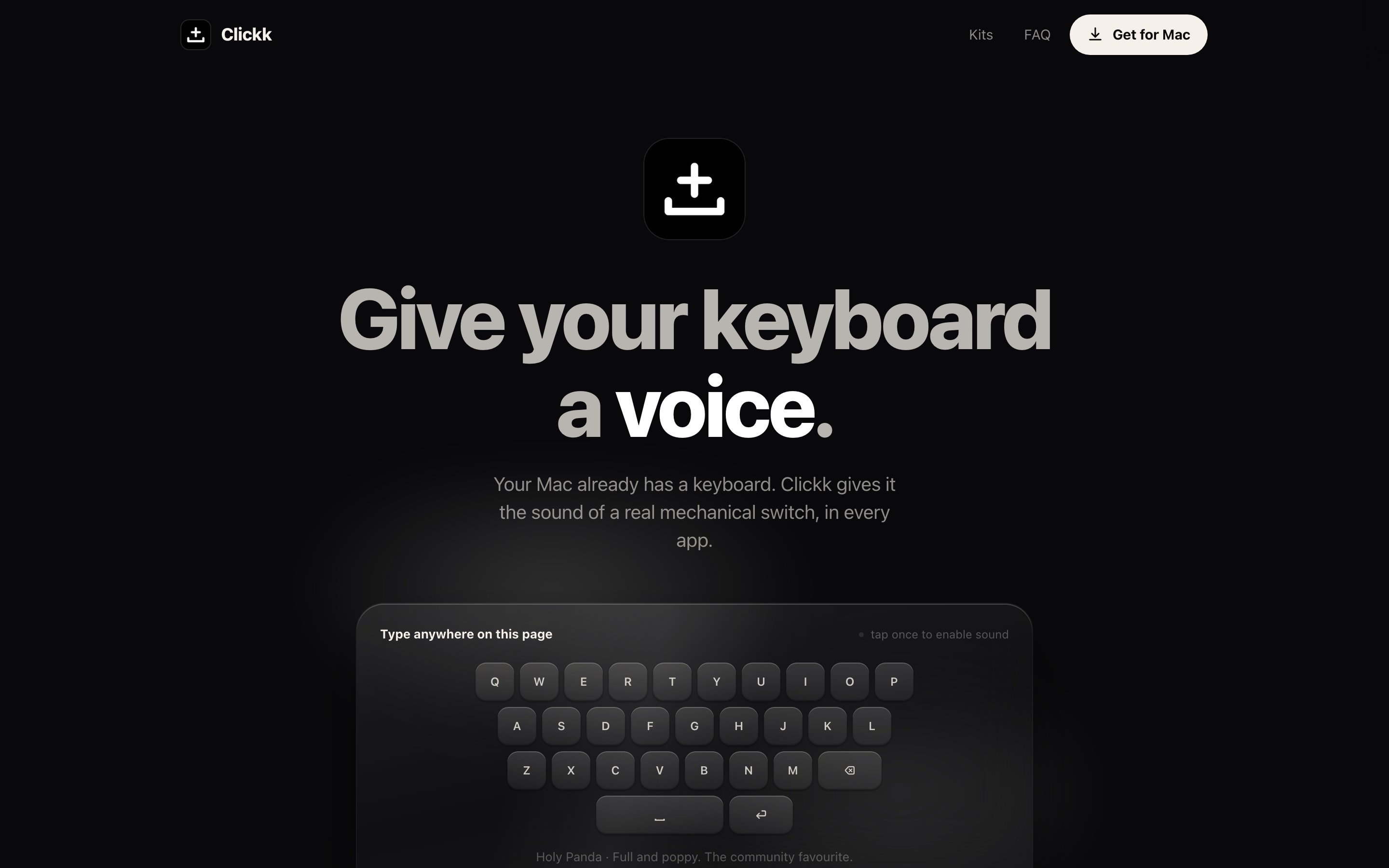
- Clickk, because a new laptop keyboard sounds like a countertop.
Install those last, after the settings, the backup and the launcher. If you only do the first section of this page and stop, the machine is already better than most.
 Slate
Slate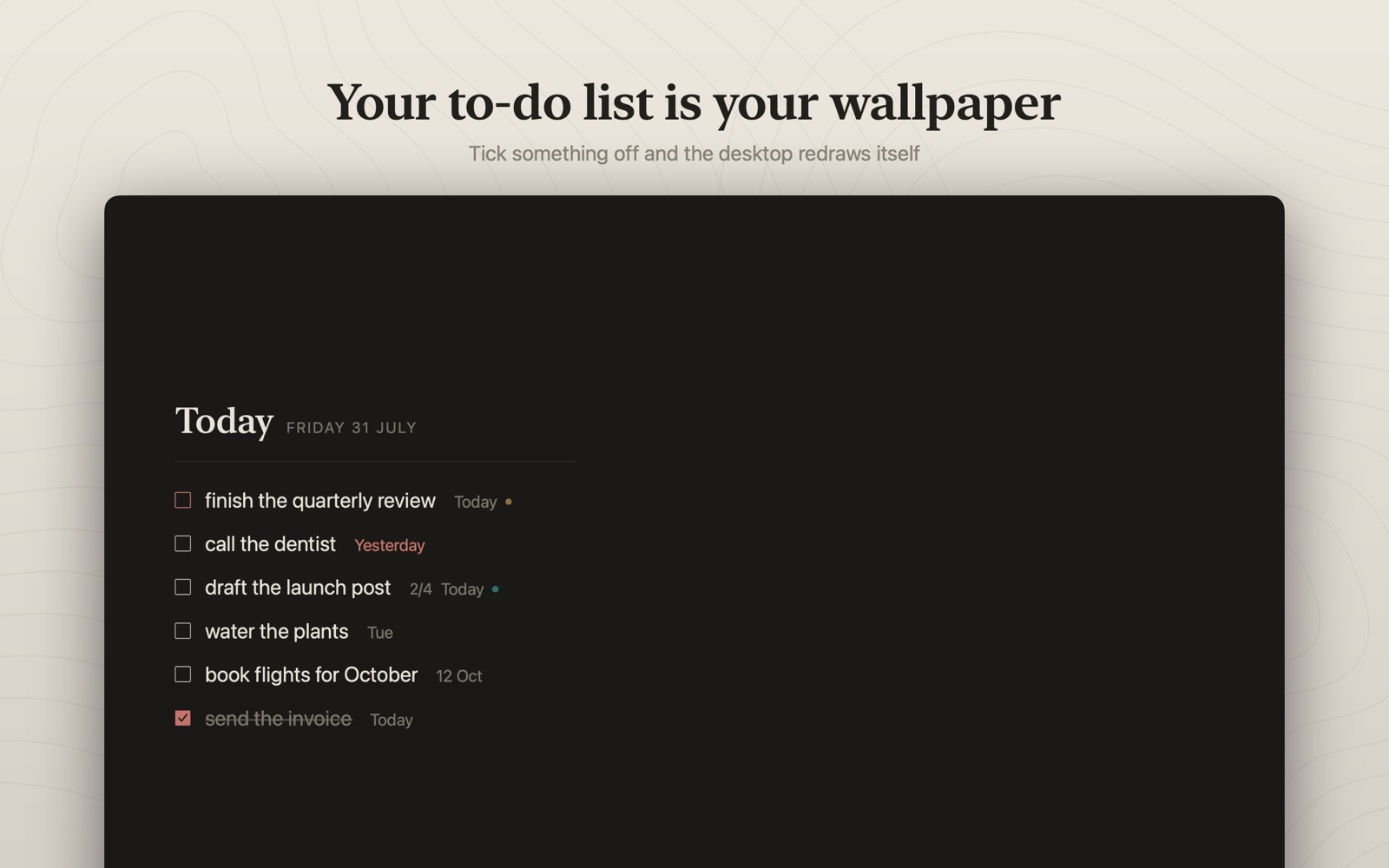
 Oreo
Oreo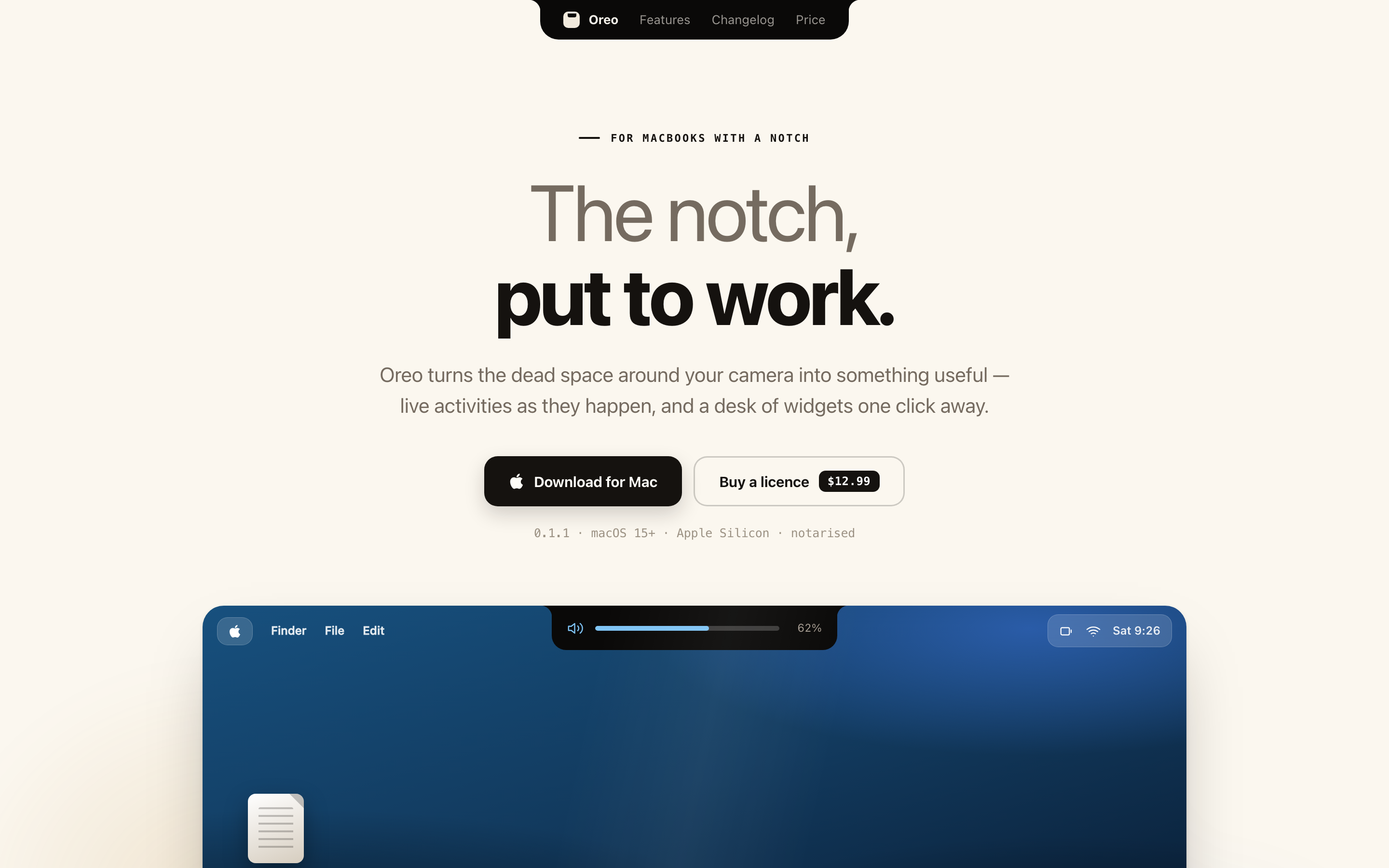
 Insomniac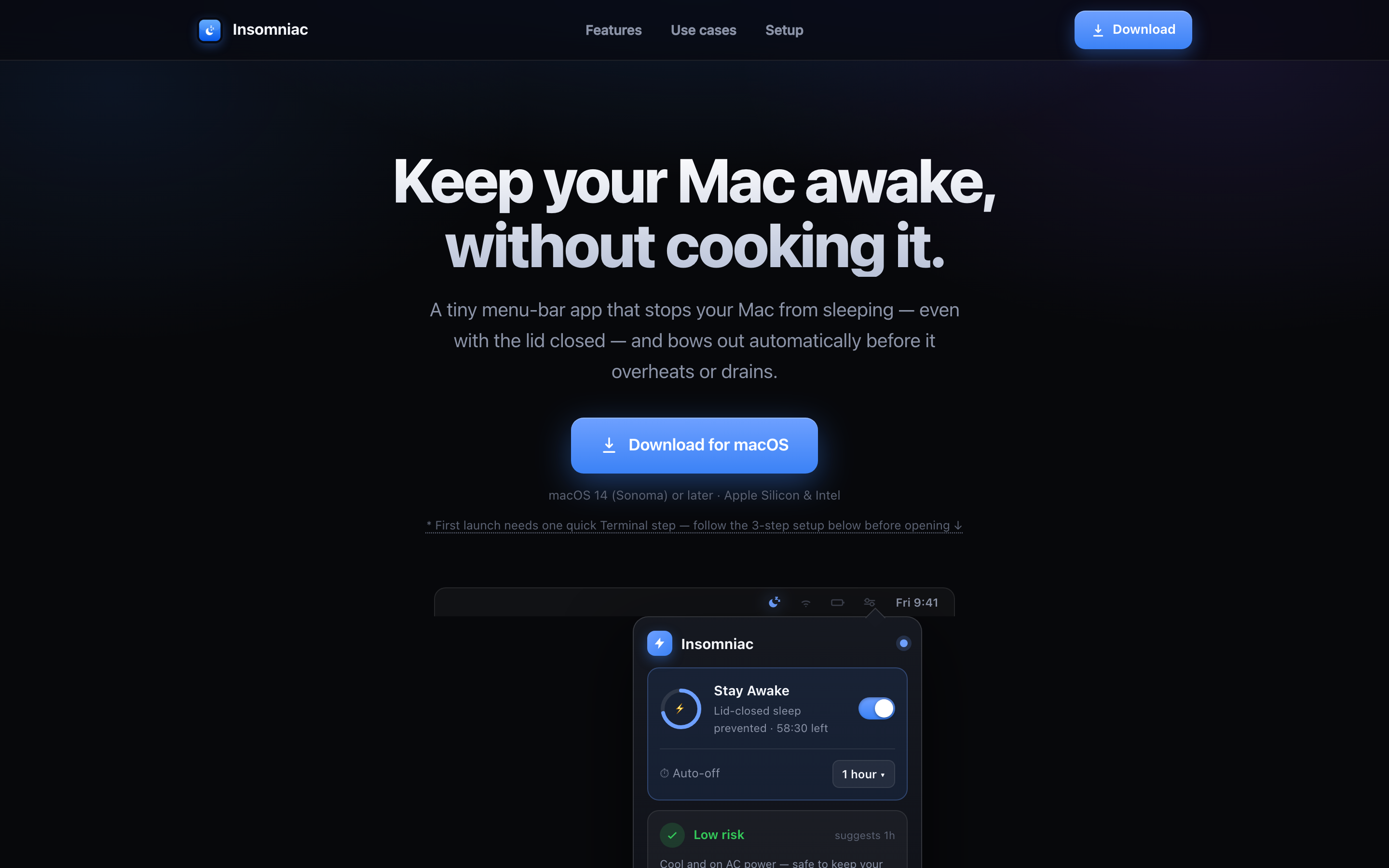
 Clickk